Set up Login with Google
The “Login with Google” feature offers a convenient way for users to access your platform using their Google credentials. To enable this feature, you’ll need to obtain a Client ID and Client Secret from the Google API Console. This article serves as a comprehensive guide to help you navigate the process step by step.
Create a Project in Google API Console
Log in to the Google API Console: Go to the Google API Console, sign in with your Google account. Then create and select your new project.

Create Credentials
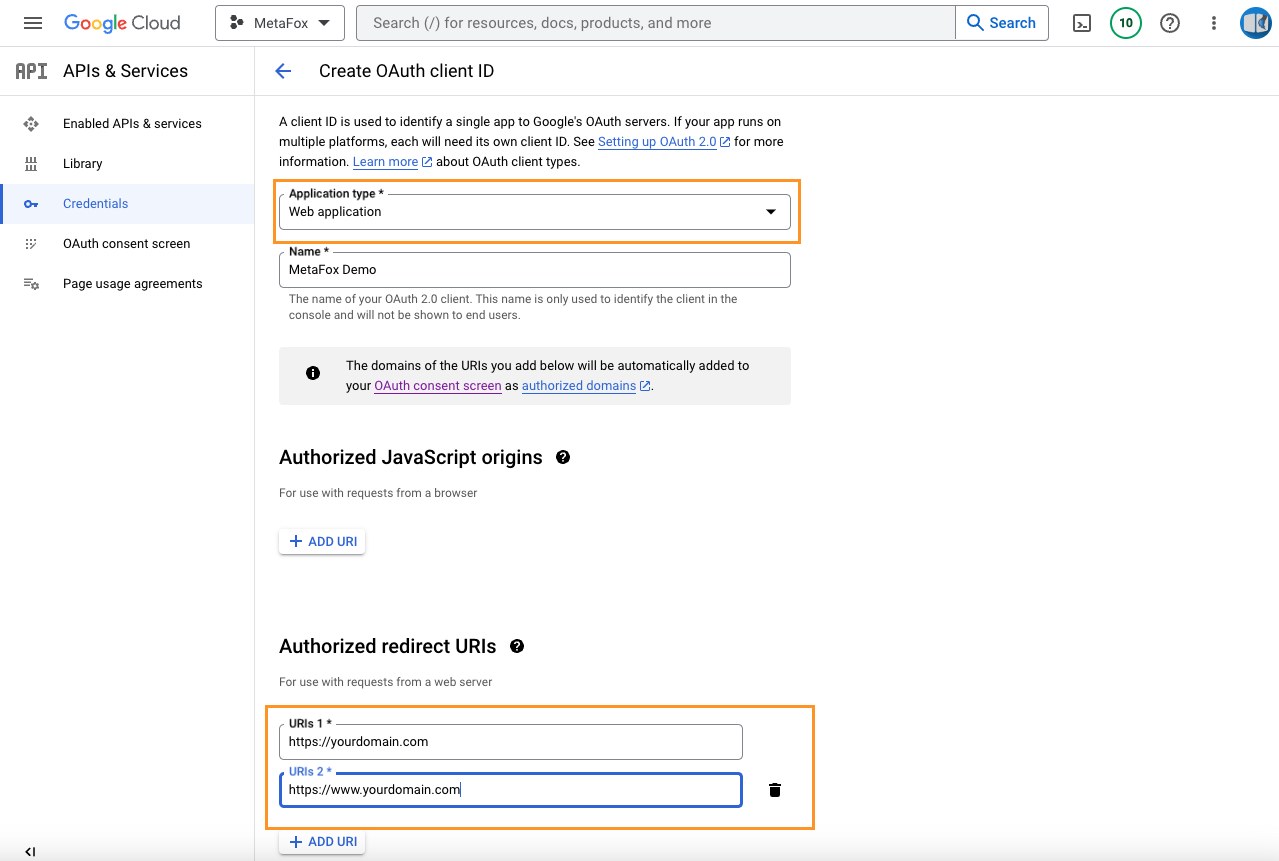
Navigate to “Credentials”: From the sidebar, select “Credentials.” Click on the “Create Credentials” button and choose “OAuth client ID.”

Select “Web application” as the application type.
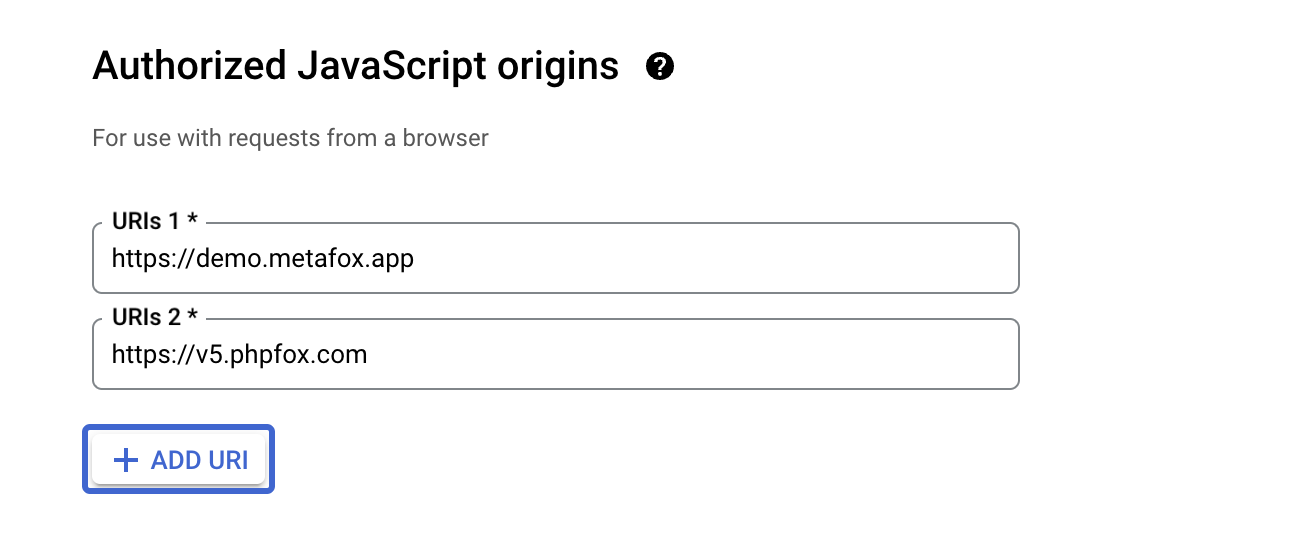
Configure Authorized Redirect URIs and Authoriszed Javascript Origins: Enter the redirect URIs where users will be sent after granting permissions. This is usually the URL of your MetaFox site as the screenshot but with your proper domain
Step 4: Obtain Client ID and Client Secret
Access Your Credentials: Under “Credentials,” you’ll find a list of your credentials. Locate the newly created OAuth client ID and click on it. Find Client ID and Client Secret: Here, you’ll find your Client ID and Client Secret.

These are essential for integrating the “Login with Google” feature into your application.
Integrate Client ID and Client Secret in MetaFox site
Log into AdminCP of your MetaFox site. Then go to App Settings > Social Connect . Select Google menu on the top and configure the obtained Client ID and Client Secret.
Don’t forget to enable the “Enable Google Login” checkbox

Congratulation! The setup for Login with Google was done now. The Google Login button will be displayed on the Login and Signup form.