Install MetaFox
MetaFox can be installed with either Docker or LAMP server. Before starting, you will need to complete all preparation steps for Installation with either or .
Now, we will walk you through the steps to properly install MetaFox with MetaFox Installation Wizard
Assume that your webserver has been set up with the domain yourdomain.com. You can visit the Installation Wizard at the link: https://yourdomain.com/install/
Follow installation steps and input all required info in the Installation Wizard to complete the installation:
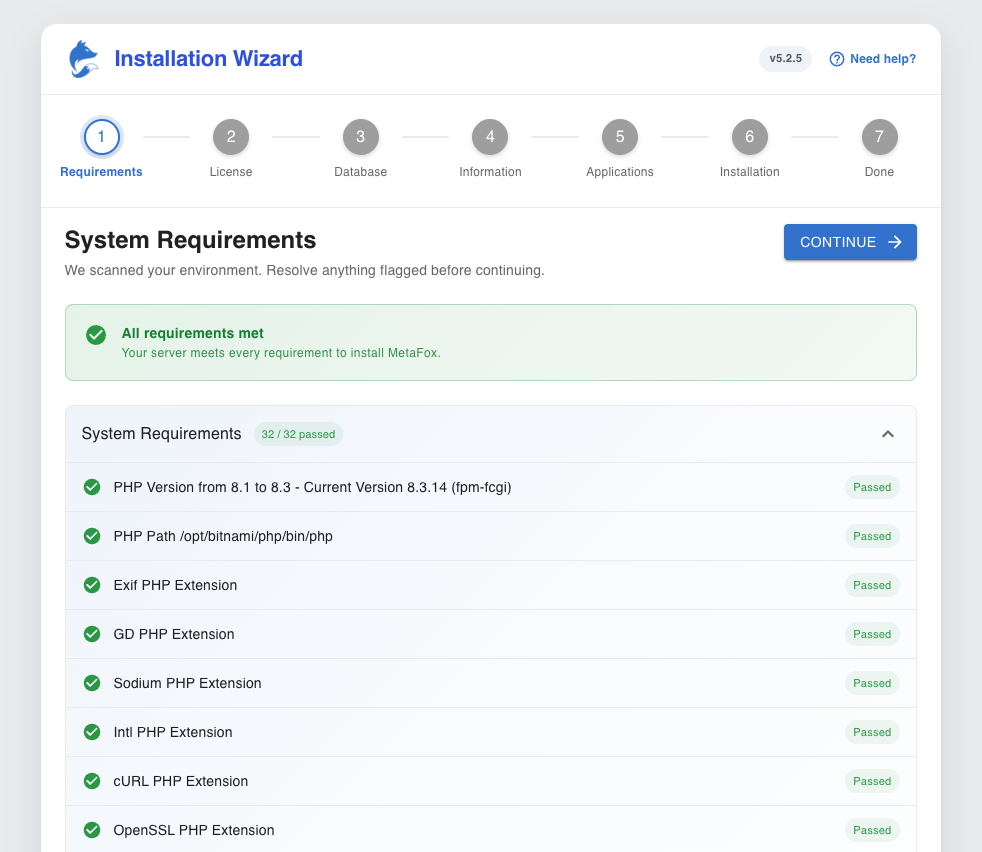
- System Requirements: Please make sure that all items under System Requirements have green checks as below.
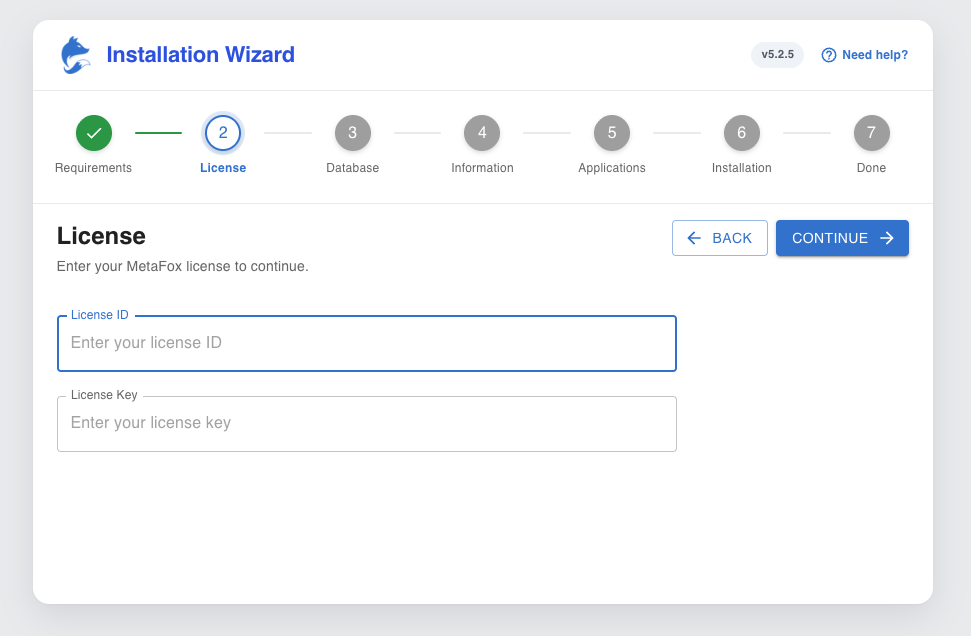
- License Key and Private Key: You can get the license info within Client Area. Note that your license domain will be verified at this step also.
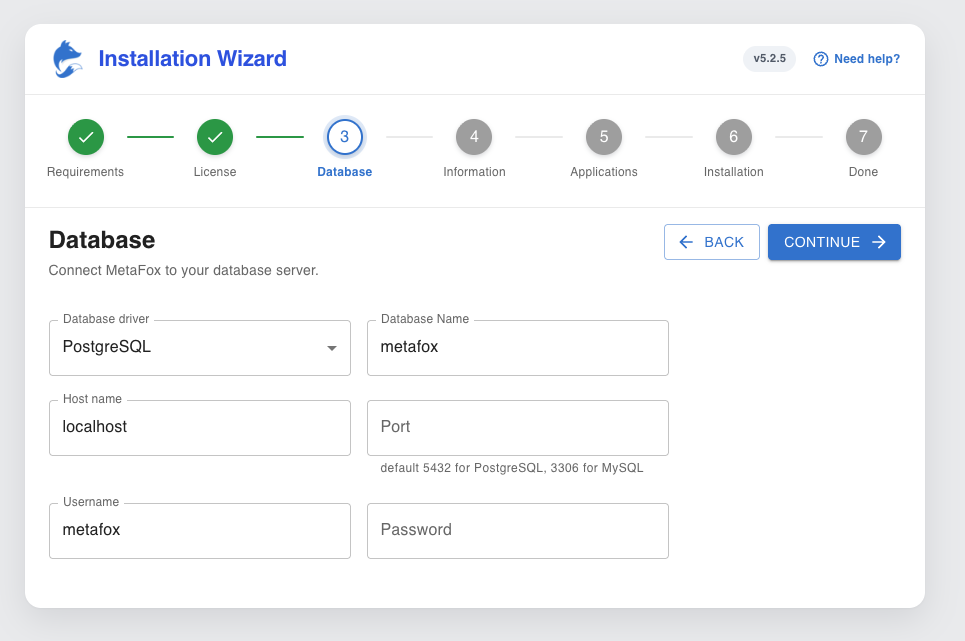
- Database: At this step, you will fill in all database credentials that you have created during the preparation steps.
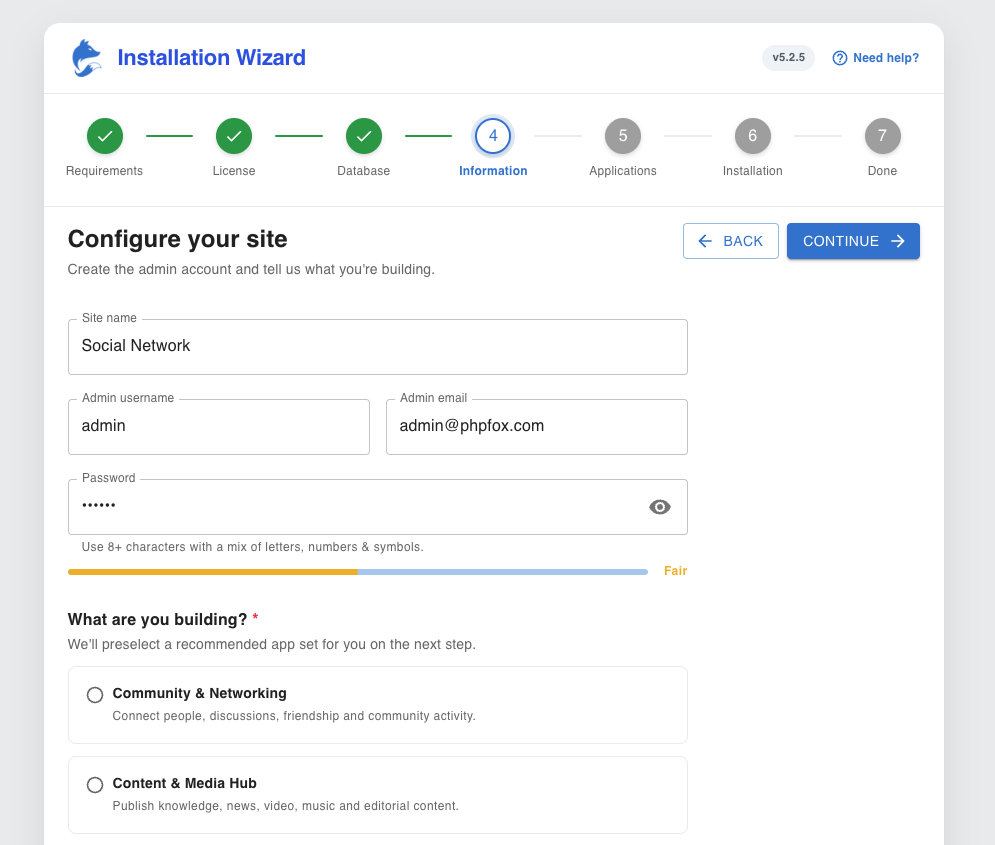
- Site Info: You are going to fill in info of Site Name and the Super Administrator user (username, email address and password) in this step.
Applications: If you have purchased apps on the Appstore, such as ChatPlus, etc. you can select those apps to install at this step
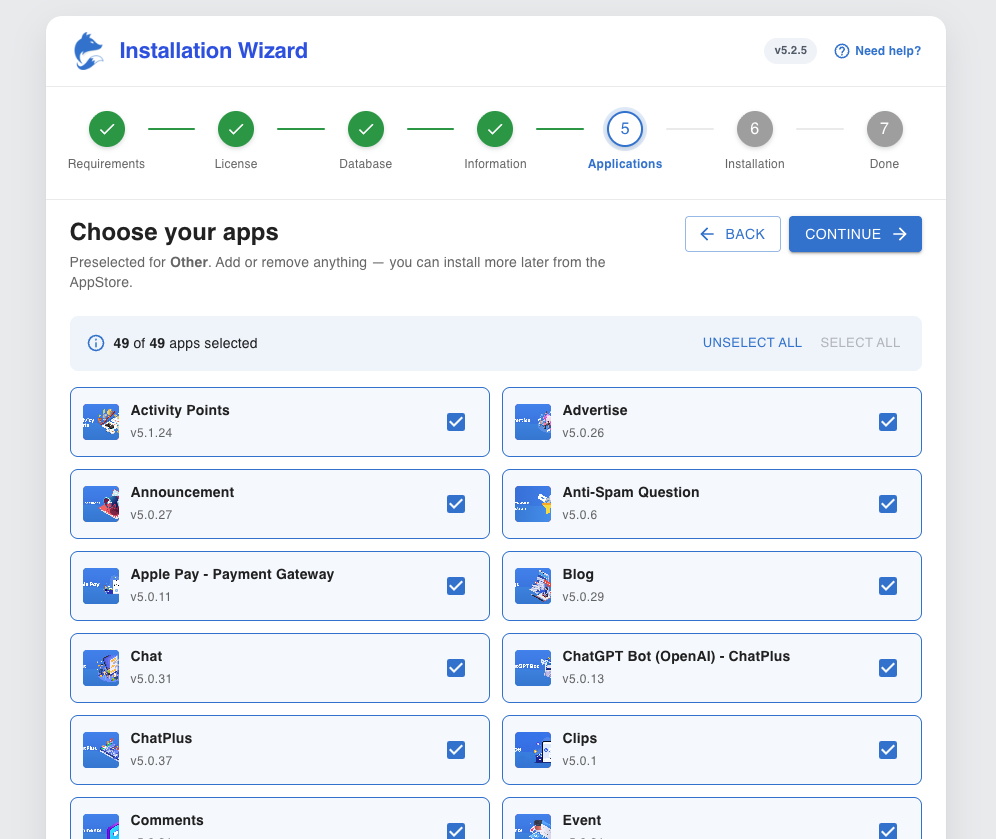
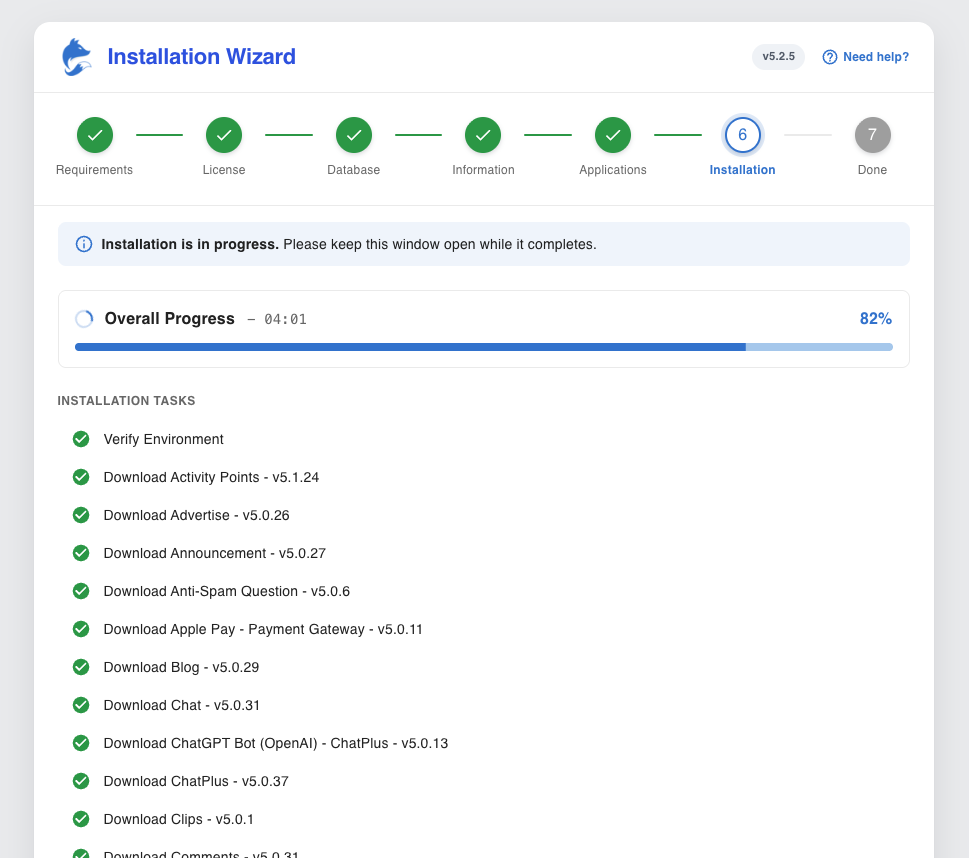
After all info is given properly, you can proceed the last step to install MetaFox site.
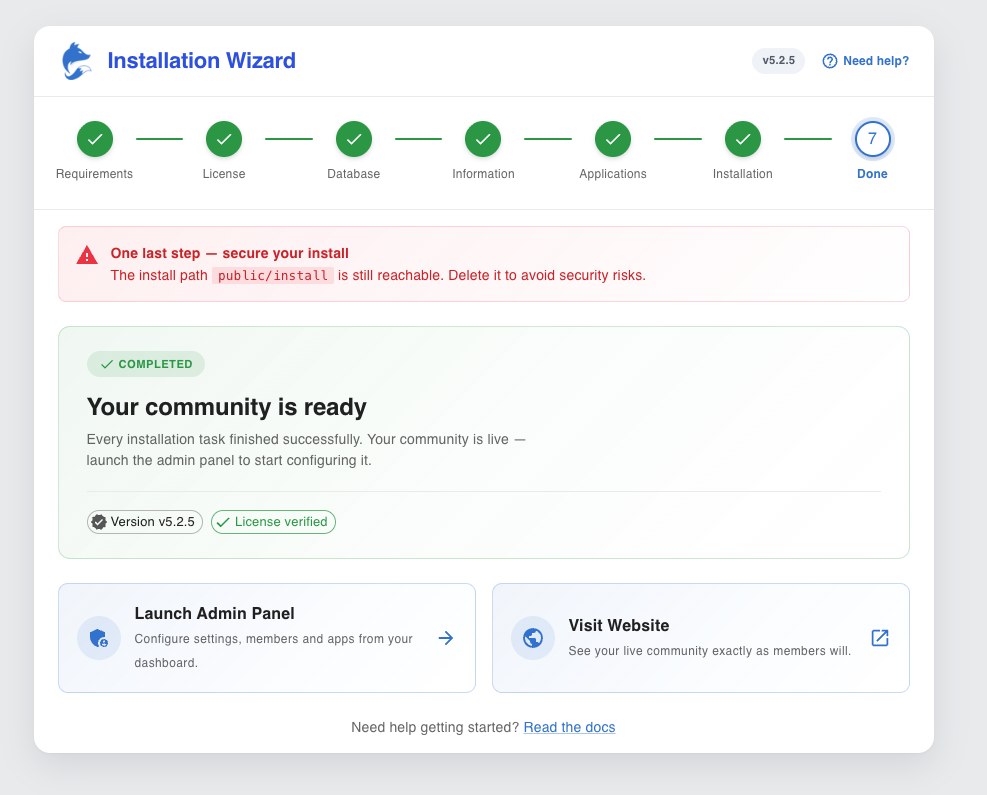
Done: When installation is completed successfully, you will see this screen
Now, going to the Landing page at the main URL, you should see the default Landing page of MetaFox

After the installation is completed, you should remove the public/install folder to avoid security risks.
Setup Cron
Many features require cron to work. Please configure two following crons. You can get the cron command in AdminCP > Settings > Schedule page
Cron for Schedule runs every minute
php path_to_webroot/artisan schedule:run > /dev/null 2>&1Cron for Queue runs every 5 minutes
php path_to_webroot/artisan queue:work --max-time=300 > /dev/null 2>&1