Add and edit Custom Fields
Custom fields in a user profile are additional data fields that you can add to a user’s profile to store information beyond the standard set of user attributes, such as username, email address, and password. These custom fields allow you to collect, store, and display specific information about a user on your MetaFox site. MetaFox supports the custom group “About” and some certain custom fields by default and you can have a quick look on how custom fields are displayed on user profile below.

In this article, we are going to walk you through step-by-step to create new custom groups as well as their custom fields. To explain you more conveniently, we will add a new custom group “Working Info” and a custom field “Company Name” into this group
Add new custom group
Let’s log into AdminCP Dashboard and go to Members > Custom Fields > Manage Custom Section
In this page, you will see the list of all available of custom groups. The About and Basic Information section group are added by default.
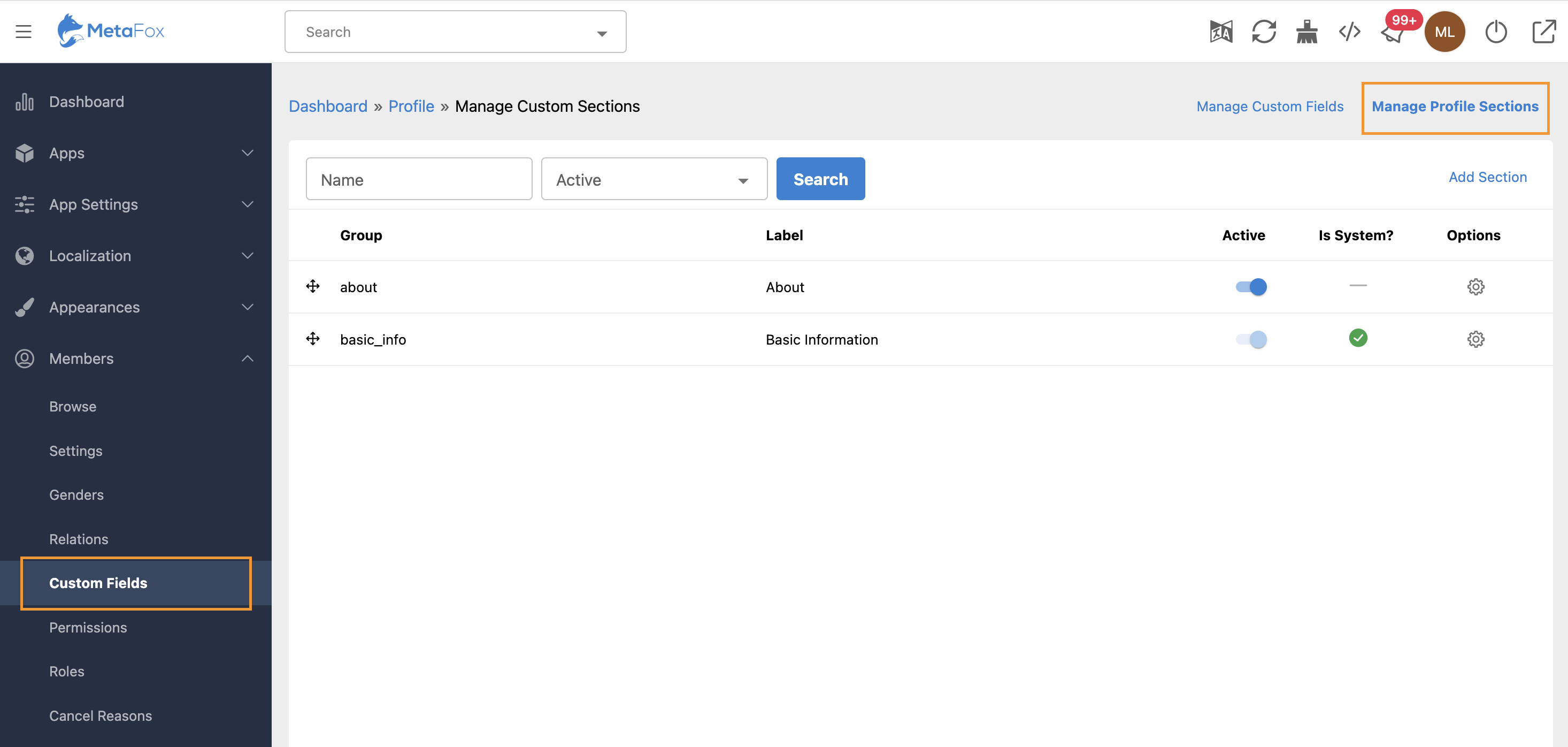
Click on the Add Section button at the top menu bar, then fill info of new group into the form as below.

Then click the Create button. You can see that a active custom group “working” is now created.

Add custom fields to custom section
Now, we will add a custom field “Company Name” info the custom group “Working Info” added in the previous step.
Let’s go to AdminCP > Members > Custom Fields > Add Custom Field page and fill the form as screenshot below.
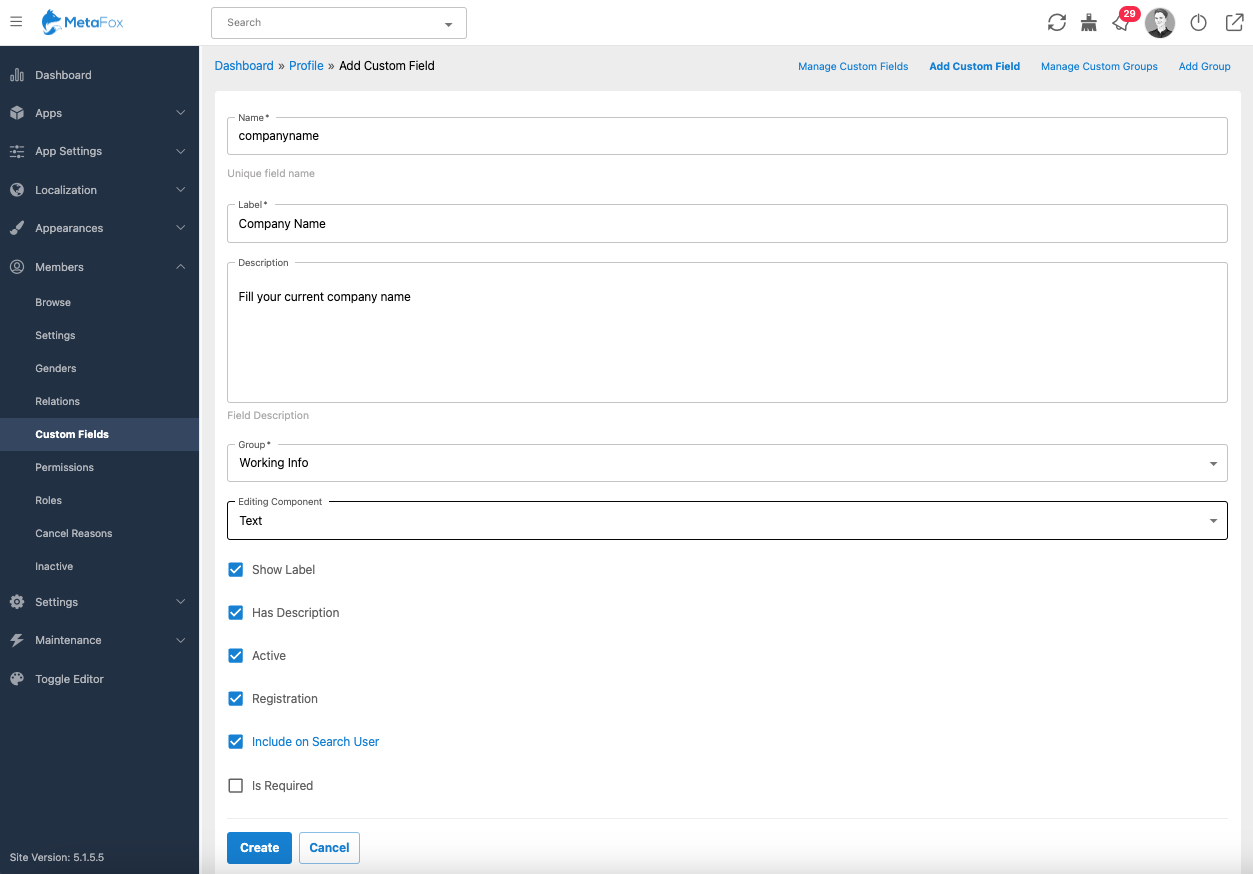
There are many supported options for Editing Component such as Radios, Checkbox, TextArea, etc. In this example, we choose using Text for users to input.
You can fill in other required fields:
- Name: Enter the name of the custom field.
- Label: Provide a label that will be displayed to users. You can add multiple languages for the label if needed.
- Type: Select the type of custom field (e.g., Text, Dropdown, etc.).
- Section: Choose the section where this custom field will be displayed (e.g., About, Working Info, etc.).
- Applicable Roles: Select the user roles for which this custom field will be applicable.
- Viewable Roles: Select the user roles that can view this custom field.
- Active: Enable or disable the custom field.
- Registration: Enable this option if you want the custom field to be available during user registration.
- Include in Search: Enable this option if you want the custom field to be included in search criteria.
- Is required: Enable this option if you want to make the custom field mandatory.
Once completing the form, you can click on the Create button.
Congratulation! You just finished adding a custom field into user profile. Users can fill the info when editing their profiles. The new custom field will display on the About tab of User Profile page now.

Translate phrases of custom fields
If your MetaFox site supports multi-languages, you can easily translate phrases of new add custom field as below
Let’s go to AdminCP > Localization > Phrases. The translation keys associated with the label and description of your custom field “companyname” are:
- profile::phrase.companyname_description
- profile::phrase.companyname_label
You can add above keys and their phrases to the supported languages. Then click on Save Changes button.
Now, clear the site cache and refresh the profile page(s) in that language, you will see the label and description of custom field are translated accordingly.